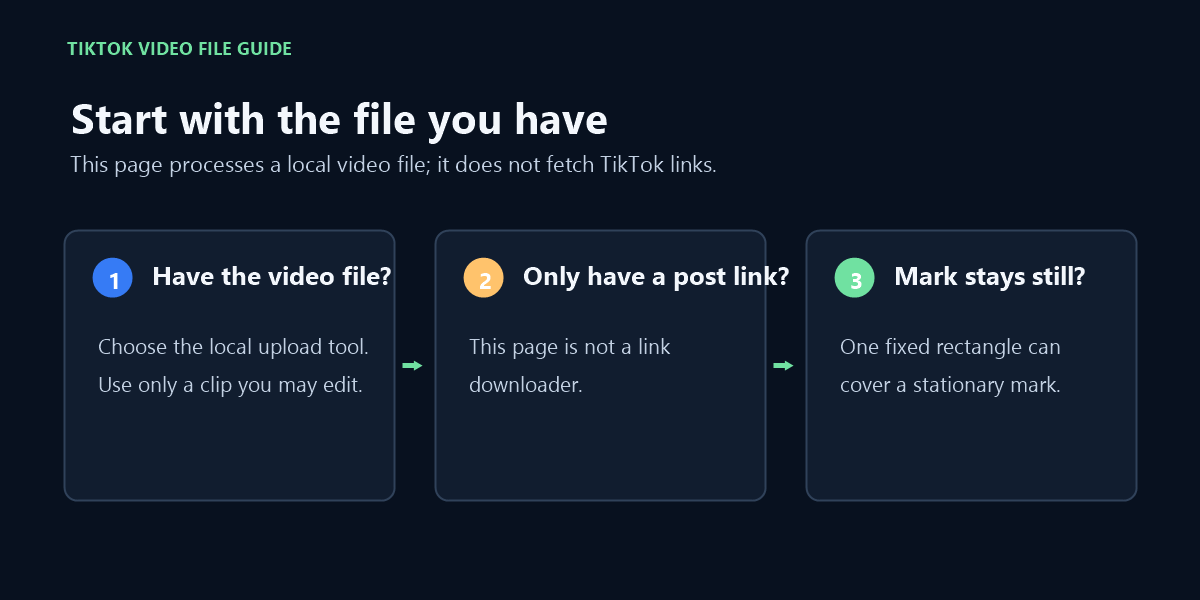
If you already have a video file you may edit, use this page to remove one stationary visible mark in your browser; if you only have a TikTok post link, this page does not fetch it.
↑Drop one video here or click to chooseMP4, MOV, or WebM · one short video · up to 80 MB
Mark the visible watermark
Drag a box over one stationary visible watermark. The same fixed area is processed throughout the clip; moving marks are outside this tool’s scope.
Your video stays in this browser. Nothing is uploaded.
Cleaned video
Original resolution is retained. The audio stream is copied without re-encoding when the selected container supports it.
Start with a local video file; a TikTok post link is not processed on this page.
One local-file test: a stationary corner mark
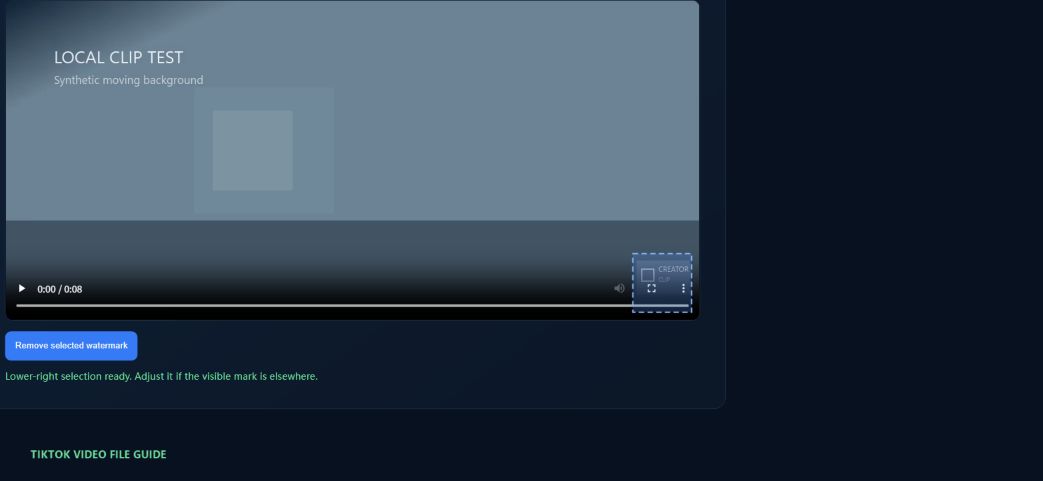
This synthetic MP4 was generated for this page’s test and processed in the browser tool above. Its small translucent “CREATOR CLIP” badge is invented test artwork, not a TikTok logo; this test does not demonstrate platform-logo recognition.
Measured in the current browser run on this machine
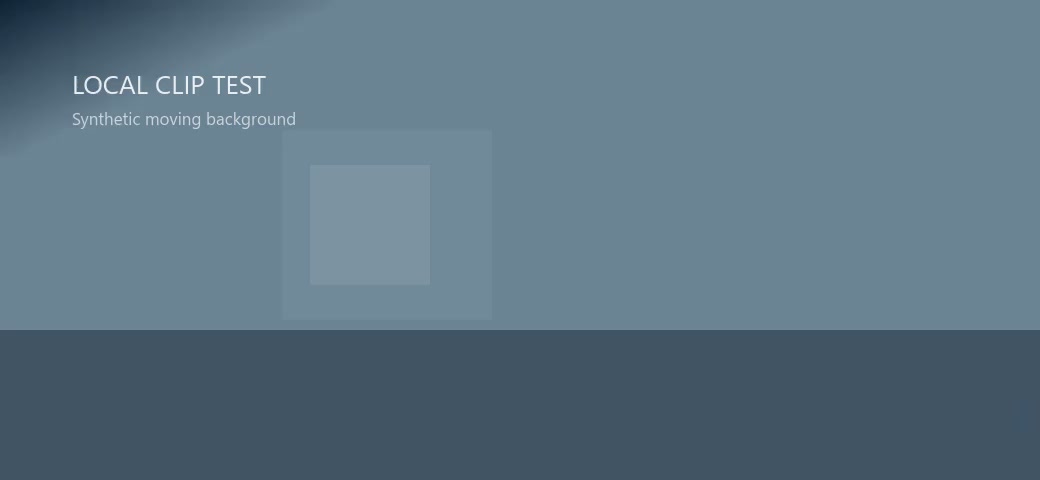
The badge is not visible in the decoded output frames checked at 00:00:00, 00:00:03, and 00:00:07. This result applies only to this generated clip and this selection.
Before — generated source, 00:00:00.Selection — same source frame, with the tool’s lower-right box.After — decoded output, same timestamp.
How to check that your file stays in your browser
For your own check, open your browser’s Developer Tools and select Network before choosing a clip. Clear the list, process a test file, and inspect Fetch/XHR requests and their payloads: the selected MP4 should not be sent in an upload request to this site. You may still see page analytics and the FFmpeg engine files loaded from jsDelivr. In this page’s code, the selected File is read into the local FFmpeg WebAssembly engine and the result is made as a browser-local Blob URL.
Check the watermark before you process
Use the tool only for a clip you created or have permission to edit. It accepts one MP4, MOV, or WebM file, up to 80 MB and 60 seconds.
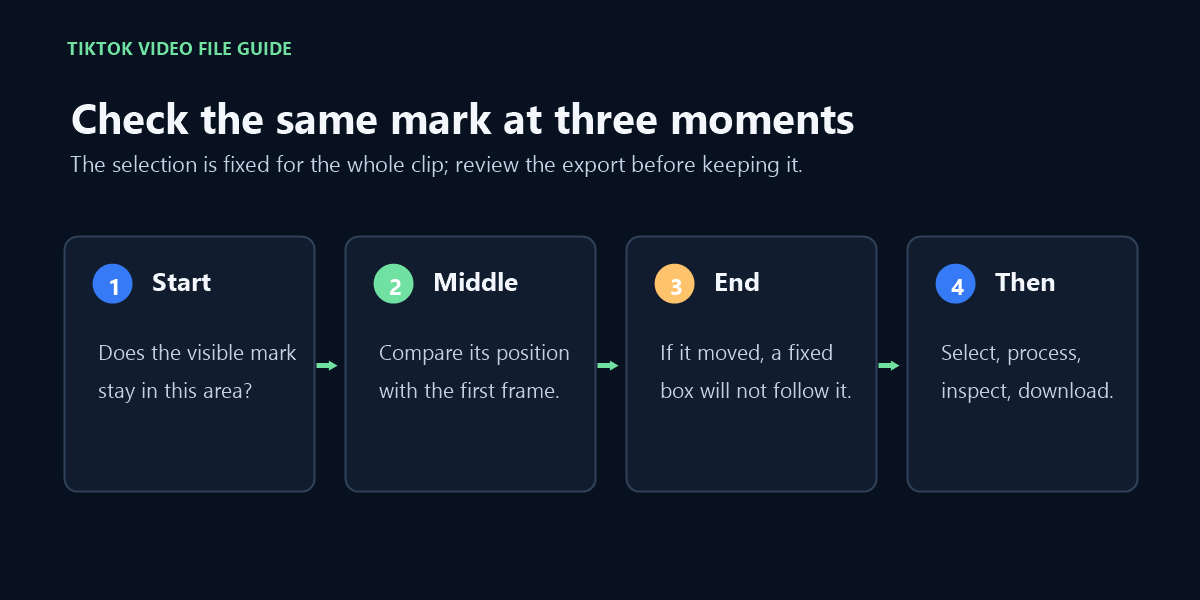
Pause the clip at the beginning, around the middle, and near the end. If the visible mark stays in the same place, draw one box around it and process the clip. The tool applies that fixed rectangle throughout the video; it does not track a mark that moves to another position.
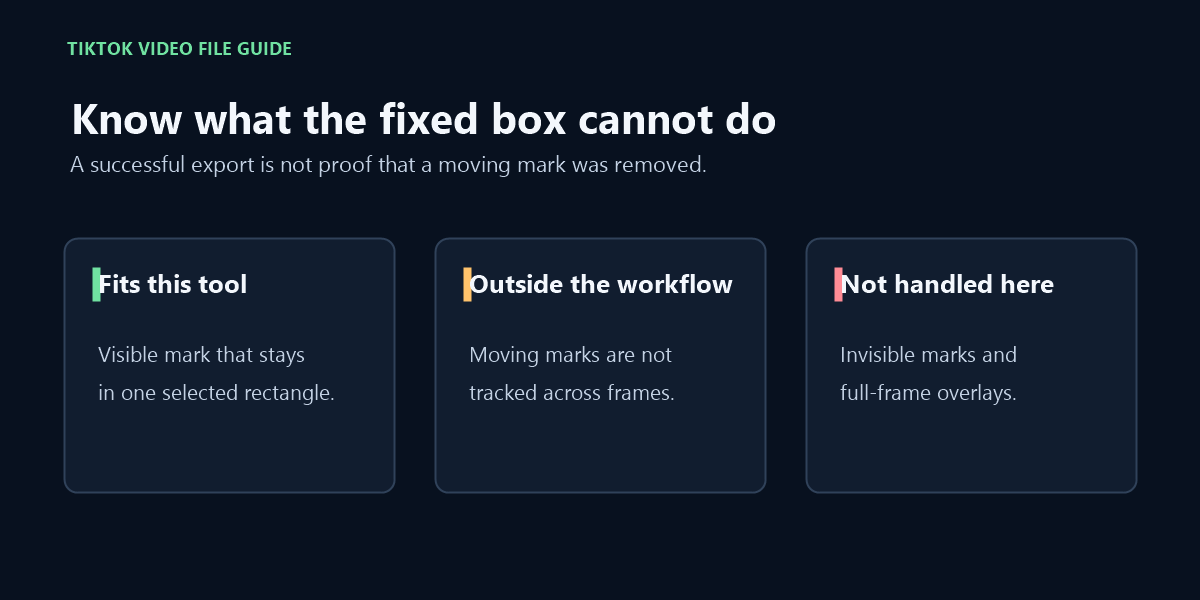
This tool handles only a selected, stationary visible rectangle. It does not remove invisible marks or full-frame overlays. Source video processing runs locally in this browser; the file is not sent to this site or a processing server.
Steps for a local TikTok video file
Choose one supported video file from your device; this page does not fetch a clip from a URL.
Check whether the visible watermark stays in one position from the start through the end of the clip.
Draw a box around that stationary mark, or use the lower-right shortcut and adjust the box if needed.
Select Remove selected watermark, review the result, then download the cleaned file.
Check the beginning, middle, and end before applying one fixed selection to the clip.
If the mark moves, covers most of the frame, or the browser cannot decode the source, this tool may not be suitable. It reports processing errors rather than promising a clean result.
FAQ
Can I paste a TikTok link here?
No. This page processes a video file selected from your device; it does not download videos from TikTok URLs.
Can it follow a watermark that moves?
No. The selection is one fixed rectangle applied across the clip. Check the beginning, middle, and end first; do not use this tool when the mark changes position.
What files can I use?
One MP4, MOV, or WebM video up to 80 MB and 60 seconds. Browser decoding and the source codec can still affect whether processing completes.
Does the video leave my browser?
No. The source video is processed locally in this browser and is not uploaded to this site or a processing server.
What if I do not own the TikTok clip?
Only process video you created yourself or have permission to edit.
A fixed rectangle does not track a moving mark or remove an invisible watermark.
Video walkthrough
Follow the local-file workflow for a stationary visible mark, then inspect the selection across the clip.