canva watermark remover
For an exported image you own or may edit, paint over one small visible area and inspect the local reconstruction. This does not identify Canva marks, open Canva designs, or bypass asset licensing.
Drop an image here or click to browse
JPG, PNG or WebP · up to 20 MB
Local inpainting result
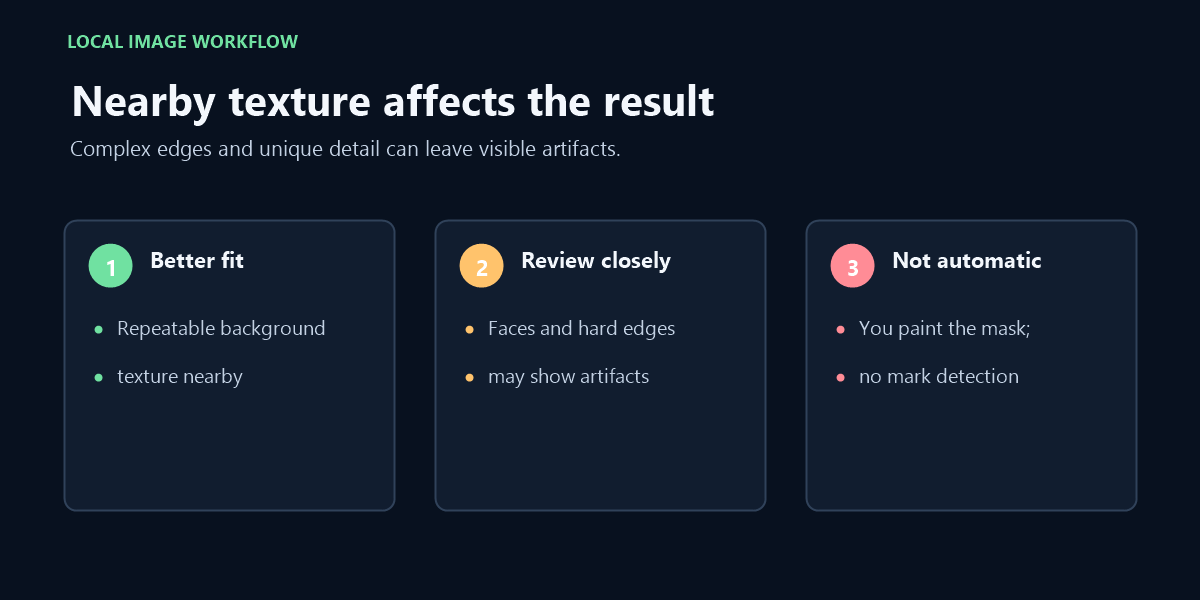
Best for small text or marks surrounded by repeatable texture. Large masks, faces, hard geometric edges and unique objects may show visible reconstruction artifacts.
Start with the exported image, not the design link
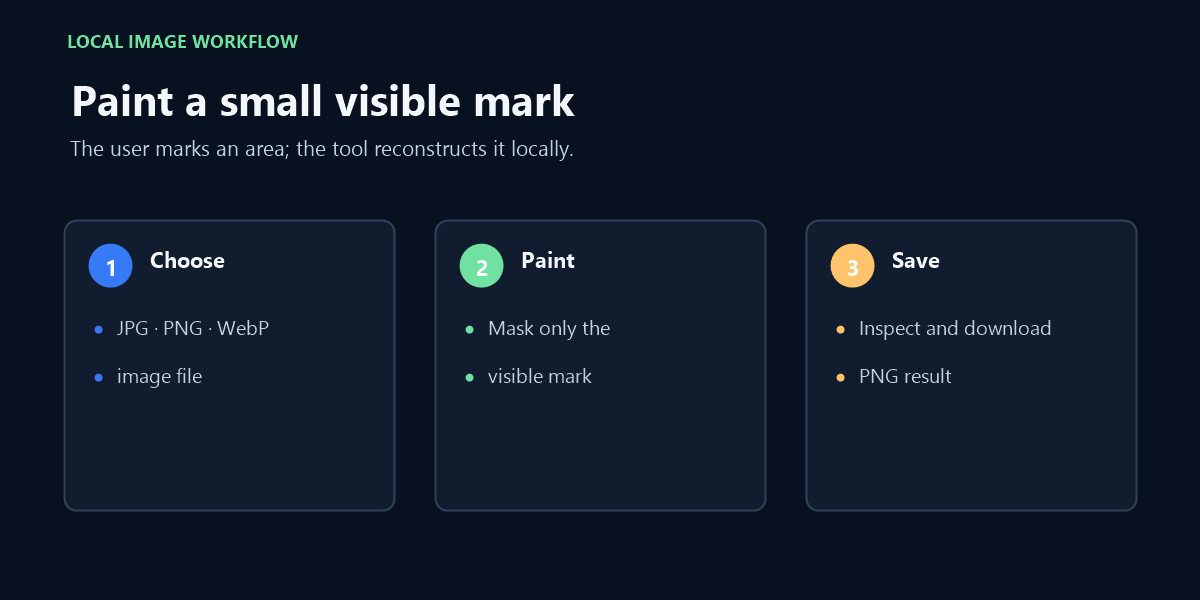
This tool accepts one raster image at a time: JPG, PNG, or WebP, up to 20 MB. It cannot open a Canva design, project link, PDF, or video. If you can still edit the design, make the permitted change there and export a fresh image; editing the source avoids retouching flattened pixels.
A visible mark on an exported image may be part of the picture, but its appearance does not tell you whether you have permission to remove it. Use this editor only on work you created or are authorized to modify. If the mark indicates that an asset needs a license or an authorized unmarked export, obtain that version instead. This tool does not unlock, license, or identify Canva assets.
When a painted repair is a reasonable fit
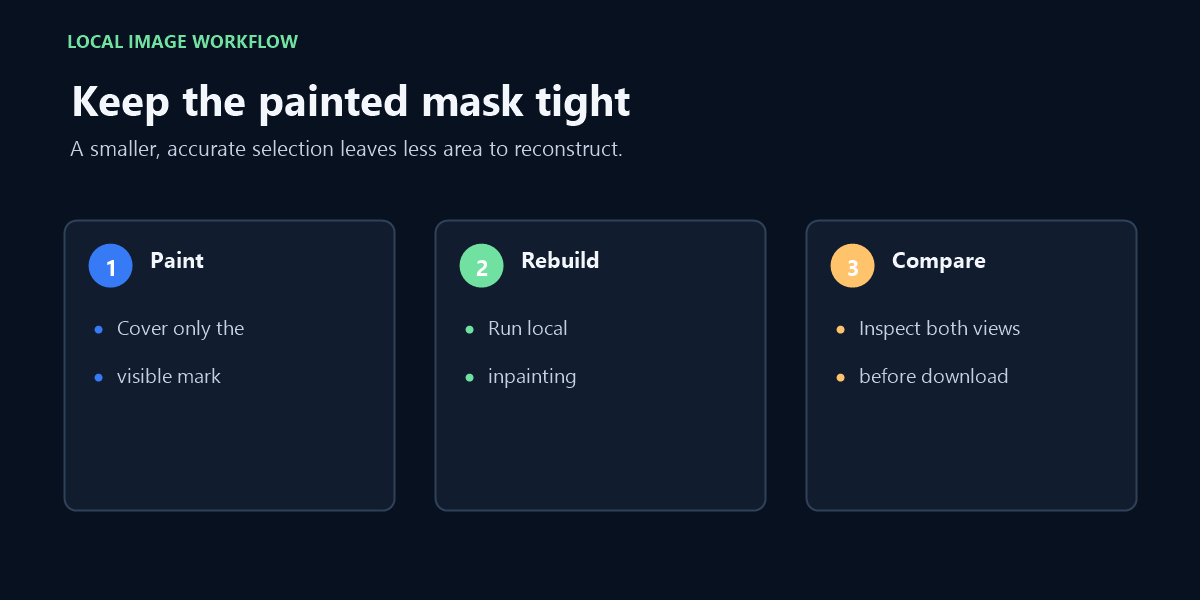
Use the brush only when the mark is visible in the exported still image and you can outline it without covering important details. The reconstruction copies nearby texture into the painted region. It does not retrieve the hidden original pixels, and it may leave blur, repeated patterns, or damaged edges when the background is detailed.
After processing, compare the original and result at the same scale. Check nearby text, object boundaries, faces, and repeating lines—not only the center of the edited patch. The tool preserves the canvas dimensions and downloads a PNG, but the reconstructed area is changed. Keep the source image so you can compare or start again.
What the tool does—and does not do
Choose a JPG, PNG, or WebP image up to 20 MB, paint one mask, run local inpainting, and inspect the before-and-after preview before downloading PNG. The page has no login step and does not upload the image for reconstruction. Its file picker handles one image per run; there is no batch queue.
It does not automatically recognize Canva branding, remove invisible marks, process a Canva URL, or make a moving video mark follow the frame. It cannot guarantee an artifact-free result. If your permission is uncertain, do not remove the mark.
Questions before using a Canva export
Does this edit my Canva design? No. It edits a separate exported image in the browser; the design itself is not opened or changed.
What file do I get? The download control saves a PNG made from the image canvas. It does not preserve the original JPG or WebP container.
Does it find the Canva watermark for me? No. You must paint the area yourself, and the tool does not determine what the mark represents.